
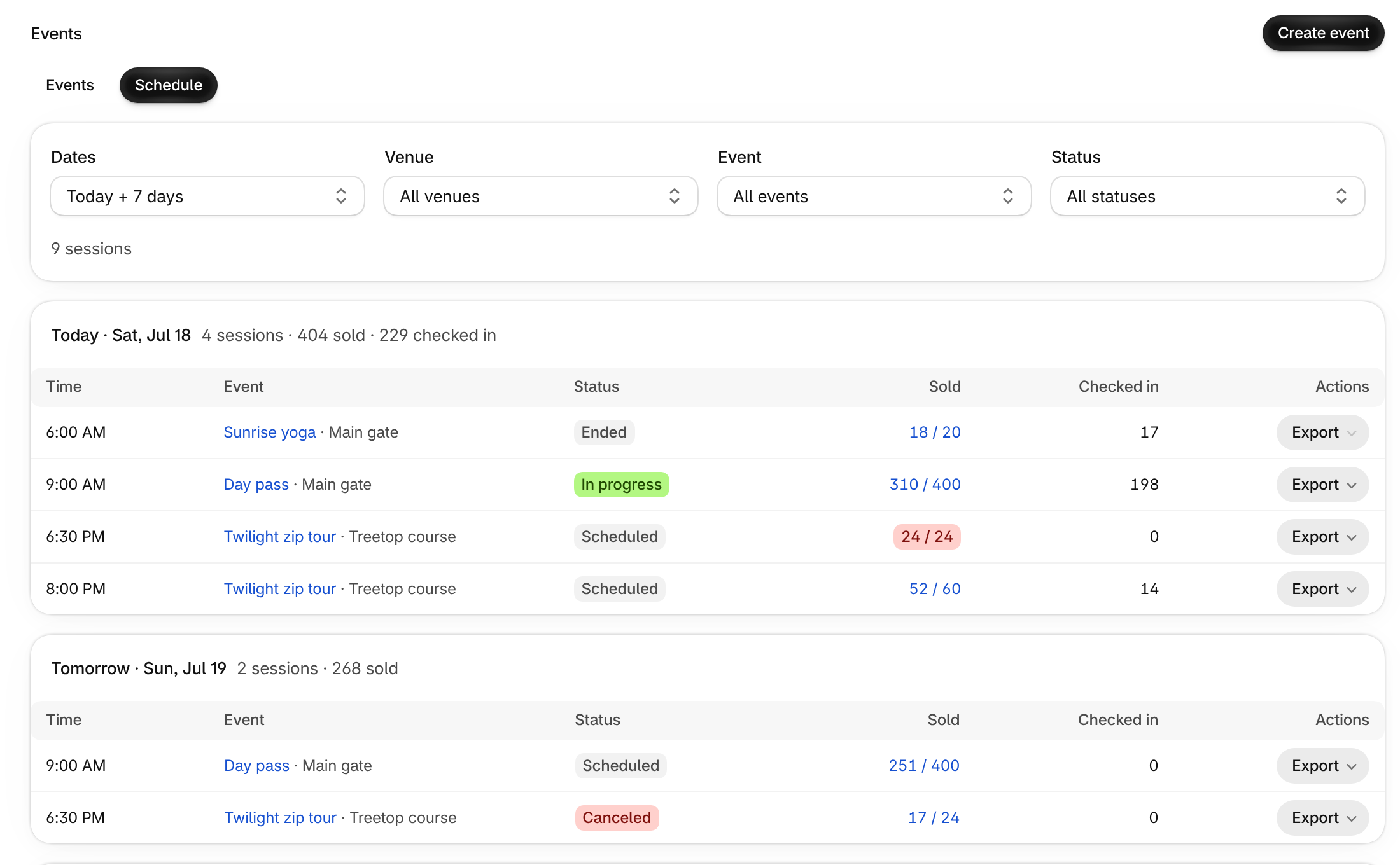
The Schedule is a second view of the Events page. Instead of one row per event, it lists every session and one-time event under the day it happens, with how many tickets sold and how many guests checked in. Use it when you run many dates, such as daily tours or a season of shows, and want to see what is on today and this week.
Requirements: The Event Ticketing app installed, and at least one one-time or multi-date event with a date.
Open the Schedule
- In the Event Ticketing app, open Events.
- Choose Schedule at the top of the page.
- To go back to the usual list, choose Events.
The app remembers the view you picked. If you have not picked one and your events cover 8 or more different days in the next 30 days, Events opens on the Schedule.
Read a day
Each day starts with its date (Today and Tomorrow are named) and a total of sessions, tickets sold and check-ins. Each row shows:
- Time: when the session starts.
- Event: the event name and its venue. Select the name to open the event, or the session’s attendees for a multi-date event.
- Status: Scheduled, In progress, Ended, Unpublished or Canceled.
- Sold: tickets sold against capacity. It turns orange when fewer than 5 are left and red when the session is sold out. Select it to open that session’s sales.
- Checked in: guests checked in so far.
- Actions: Export opens Print attendee list and Export attendee list for that session, where your plan includes them.
Filter the Schedule
- Under Dates, choose Today + 7 days, Next 30 days or Custom (then set From and To).
- Narrow it with Venue, Event and Status. Status also offers Sold out and Low inventory.
- Choose Show the next 7 days at the bottom of the list to look further ahead.
Related articles
- One-time event: create an event with a single date.
- Multi-date event: create an event with many sessions.
- Recurring events: add sessions on a repeating pattern.
- Event capacity: set the capacity the Sold column counts against.
FAQ
Why does a row say “Not available” under Actions?
That session has no attendee files to print or export, for example an unpublished event.
What does “Nothing scheduled in this range.” mean?
No session falls inside the dates and filters you chose. Widen Dates or clear a filter.
Why does it say “Showing the first 600 sessions”?
The Schedule shows at most 600 sessions at once. Choose a shorter date range or a venue to see the rest.
What if it says “We could not load the schedule”?
Check your connection, then choose Try again.
