
The Ticket picker is a theme app block for your event’s product page. It takes buyers through the date and time, their tickets, any add-ons and the answers to your questions, one step at a time, and then sends them to checkout.
Requirements: the Event Ticketing app, on any plan. An Online Store 2.0 theme that supports app blocks. An event’s product set to Active and published to your Online Store.
Add the block to your product page
- In Shopify admin, go to Online Store > Themes and open the theme editor.
- Open the product template your event products use.
- Add a block and choose Ticket picker.
- Remove the theme’s own buy buttons from the same template: the add to cart button, the quantity selector and any dynamic checkout button. If the template has the Ticket form, remove it too, so buyers see one way to buy.
- Save the theme.
What buyers see
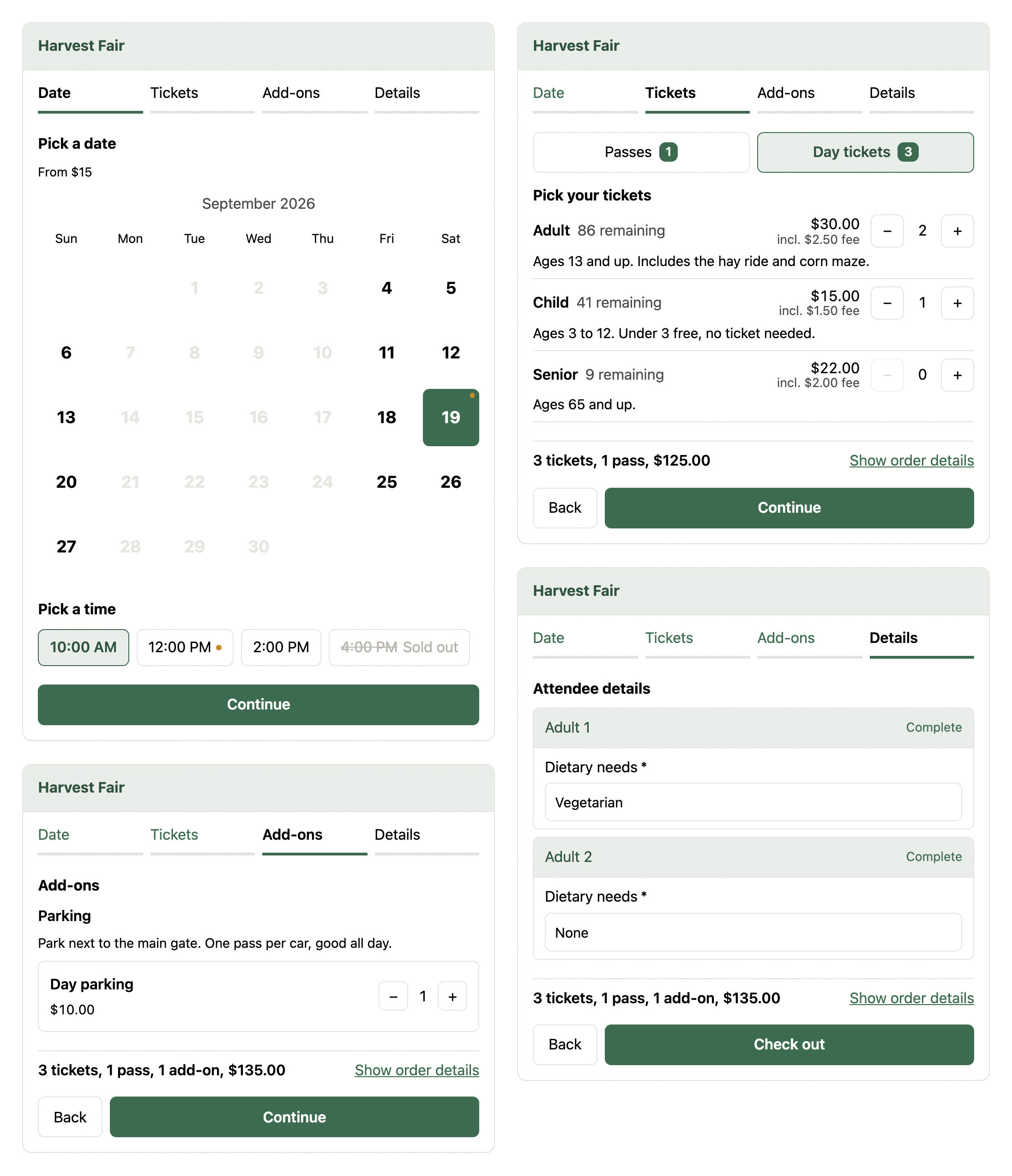
The picker shows only the steps your event needs:
- Date: a calendar of the event’s dates and times. A time with no tickets left shows as Sold out. It’s its own step when the event has many dates and several ticket types. Otherwise the dates sit on the same screen as the tickets.
- Tickets: each ticket type with its price, description and a quantity. A booking fee shows under the price, as in “incl. $2.50 fee”, and Show remaining inventory? adds how many are left. If the event sells passes as well as dated tickets, buyers switch between them with tabs.
- Add-ons: offers that have Ticket picker turned on, for the date the buyer picked.
- Details: your attendee and buyer questions, from the event’s question sets.
Buyers press Continue to move on and Back to return to an earlier step. The last step’s button reads Check out, or View cart if you send buyers to the cart. A summary above the button keeps a running count of tickets, add-ons and the total, and Show order details lists them.
A single-date event with no add-ons and no questions fits on one screen.
Block settings
Select the block in the theme editor to change it:
- Accent color: the color for selected dates and times and the checkout button.
- Date picker style: Automatic, Month grid or Compact row. Automatic picks a month grid or a row of dates from how many dates your event has.
- Preselect the first available date?: opens with the earliest date already chosen, so tickets and prices show right away. Leave it off if picking the date is the buyer’s main decision.
- Redirect to: Checkout or Cart, where buyers go at the end.
- Show remaining inventory?: shows how many tickets are left.
- Show end time for timeslots?: shows each time’s end as well as its start.
- Passes tab label and Dated tickets tab label: rename the tabs shown when an event sells both. Leave them blank for “Passes” and “Day tickets”.
- Use my theme’s styles?: turns off the block’s own styling so your theme’s styles apply.
Related articles
FAQ
Why does the block show “This product is not available on your storefront yet”?
The picker reads the product from your Online Store. Set the product’s status to Active and publish it to the Online Store, then reload the page.
Why is the block empty in the theme editor?
The app sets up your store’s storefront access when it’s installed. If the block stays empty, contact support so we can check it.