
The Add devices section of the Check In page offers a way to sign in a device for each situation: the device is in your hand, someone else has it, a whole crew needs codes, or everyone shares one code and PIN. Use access codes when you can’t hold the device yourself, for example staff arriving at another gate or a crew hired for the day.
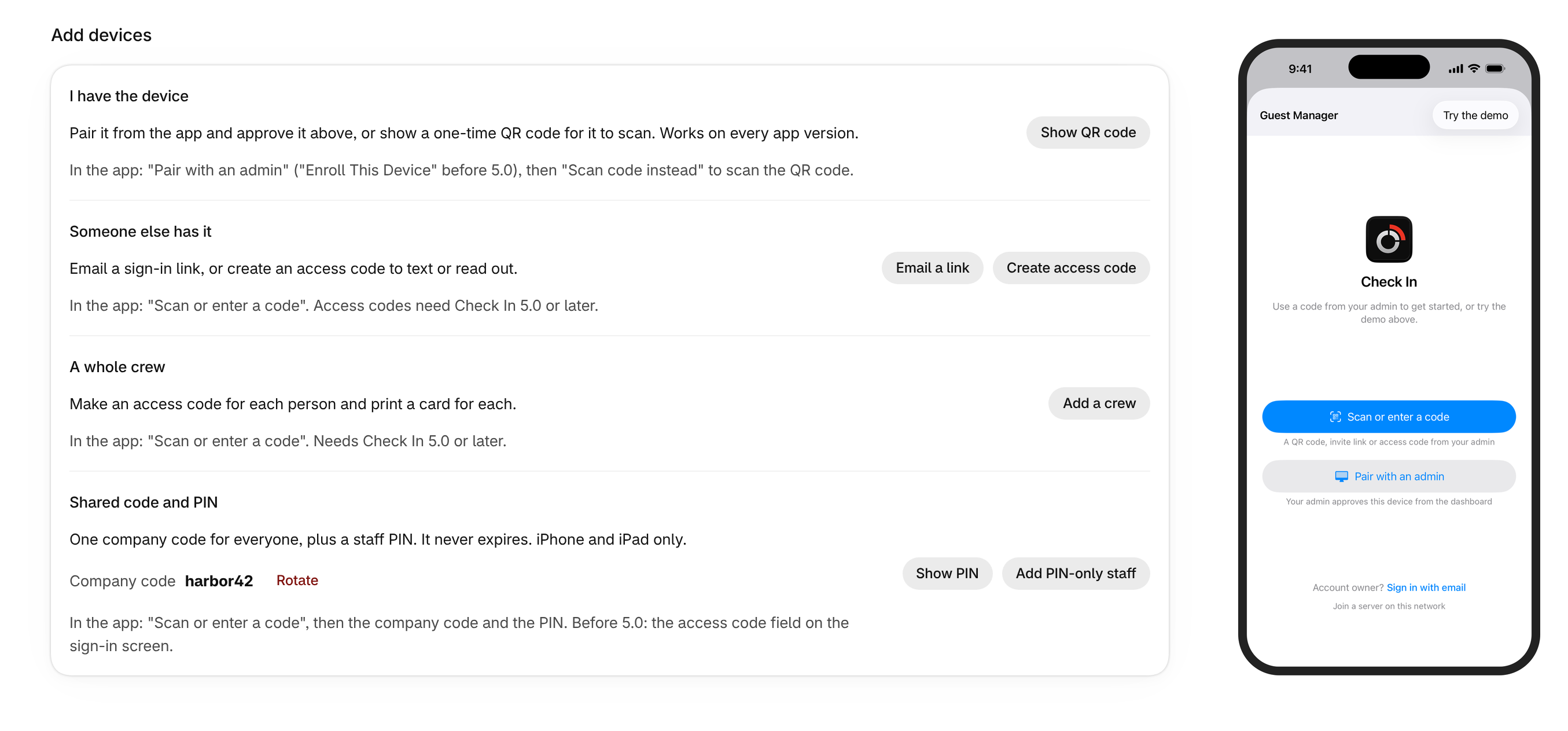
Requirements: The Check In app installed on each device, see Choosing and setting up a scanning app. Access codes and crews need Check In 5.0 or later.
Pair a device you have in hand
- In the Check In app, tap Pair with an admin (Enroll This Device before 5.0).
- In the Event Ticketing app, open Check In. The device appears under Devices waiting to pair: click Approve… on its row.
- Or click Show QR code in the I have the device row, and in the app tap Scan code instead to scan it. This works on every app version.
Create an access code
- Open Check In and click Create access code in the Someone else has it row.
- Under Staff, choose Ask for a name when they sign in, New staff member or Existing staff member.
- Set Uses: how many devices can sign in with this code.
- Choose when the code expires.
- Optionally add an Email (optional) address and a Note (optional, included in the email).
- Click Create access code, then text, read out or email the code.
- On the device, the staff member taps Scan or enter a code in the Check In app and enters it.
To send a sign-in link instead, click Email a link in the same row.
Add a crew
- Click Add a crew in the A whole crew row.
- Enter a Name and, if you like, an Email (optional) for each person. Click Add another person for more.
- Click Create access codes, then Print a card for each person or Download CSV.
Use the company code and PIN
The Shared code and PIN row shows your Company code. Click Show PIN to see the staff PIN. Staff tap Scan or enter a code in the app, then enter the company code and the PIN. It never expires and works on iPhone and iPad only. Click Add PIN-only staff to add staff who sign in this way.
Click Rotate to replace the company code. Devices already signed in keep working; anyone signing in on another device needs the new code.
Related articles
FAQ
“No device is waiting with that pairing code.”
The Enter pairing code box takes the 6-digit code a device shows while it waits to pair. To give someone a code they can type into the app, create an access code.