
After a ticket sale in Shopify POS, you can print each ticket on your receipt printer and hand it to the guest. Each ticket carries a QR code your door staff can scan. Printing is off until you turn it on in the Shopify POS editor.
Requirements: The Event Ticketing app installed · Shopify POS with a receipt printer connected · POS order processing turned on, so in-person sales issue tickets (see Turn on POS order processing).
Turn on ticket printing
You do this once, in your Shopify admin.
-
In your Shopify admin, go to Sales channels > Point of Sale.
-
Under Customize the in-store experience, click Edit Point of Sale.
-
In the editor, open Apps for Point of Sale. Under Event Ticketing, click Print tickets.
-
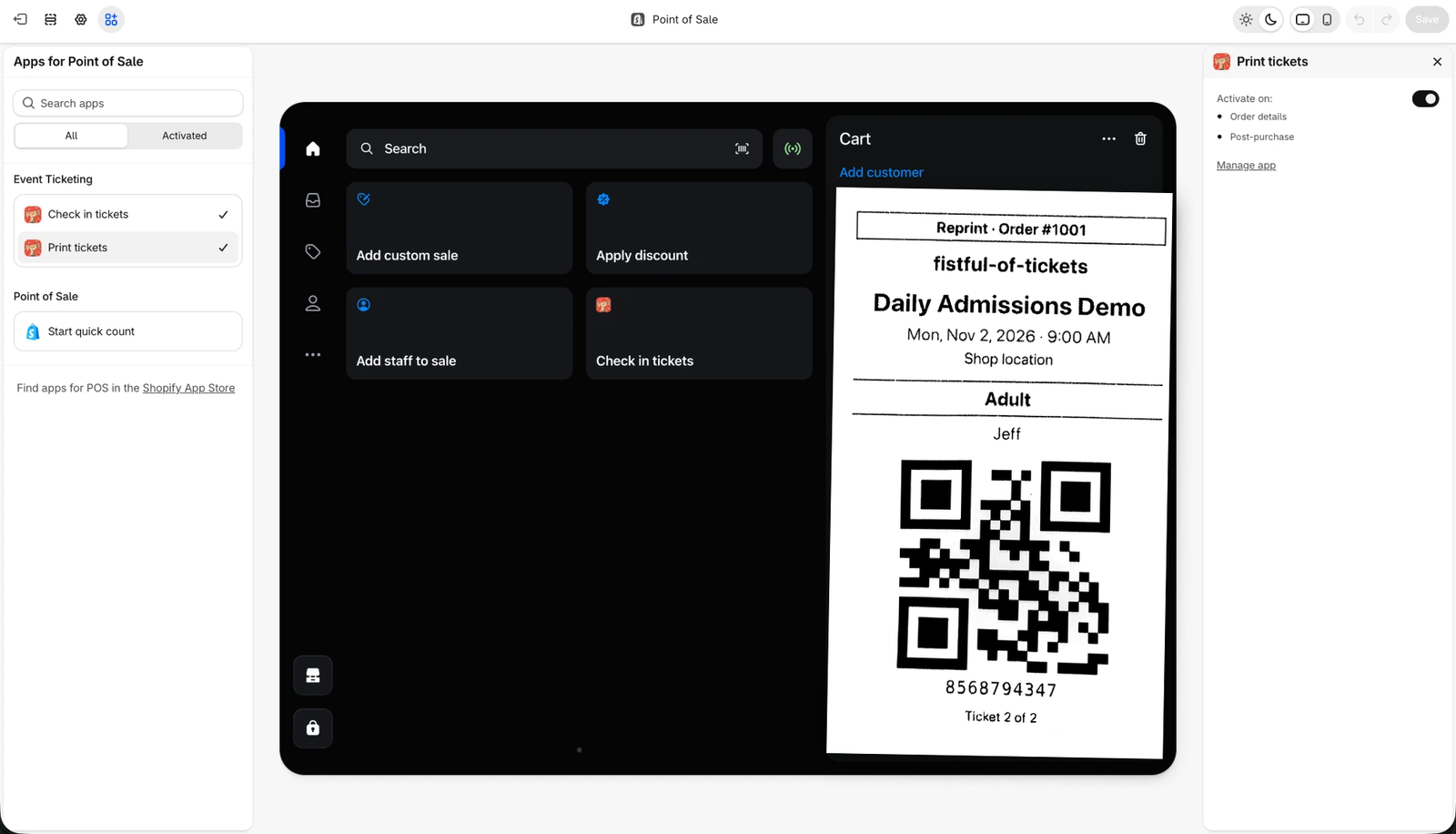
In the Print tickets panel, turn on Activate on. This adds printing to two screens: Order details and Post-purchase.
-
Click Save.
Print tickets after a sale
-
Sell the tickets in Shopify POS as usual.
-
On the sale complete screen, find the Tickets block. It shows Preparing tickets… for a moment, then a button with the number of tickets in the order, for example Print 2 tickets.
-
Tap the button. The tickets print one after another, with a tear line between them.
A sale with no tickets in it doesn’t show the Tickets block.
Reprint tickets from an order
-
In Shopify POS, open Orders and select the order.
-
In the order’s actions, beside Receipt, tap Print tickets.
A reprint is marked Reprint with the order number at the top of each ticket, so you can tell it apart from the original.
What prints on a ticket
- Your store name.
- The event, its date and time, and the venue.
- The product variant and the ticket type.
- The guest’s name.
- A QR code, with a code underneath to type in if the QR code won’t scan.
- The ticket’s place in the order, for example “Ticket 1 of 2”.
A ticket that was voided or transferred, or that is still pending, prints crossed out with its status and no QR code. It can’t be scanned, and the guest can see why.
Related articles
FAQ
The Tickets block or the Print tickets action doesn’t appear. Why?
Check that Print tickets is activated in the Shopify POS editor (see Turn on ticket printing) and that you saved the change. The block also stays hidden for sales that contain no tickets.
It says “POS orders aren’t being processed for this store.”
POS order processing is off, so the sale didn’t issue tickets. Turn on Point of sale order processing in the Event Ticketing app’s Settings, or turn it on for that event. See Turn on POS order processing.
It says “Tickets are taking longer than usual.”
The tickets for this order weren’t ready in time. Open the order in Orders a little later and tap Print tickets. If the message stays, contact support with the order number.
It says “Couldn’t print. Try again.”
The print didn’t go through. Check that the receipt printer is on and connected to Shopify POS, then tap the button again.
Can door staff scan a printed ticket?
Yes. The QR code scans the same way as the one on a PDF or wallet ticket, with the Shopify POS scanner or the iOS Check In app.
