
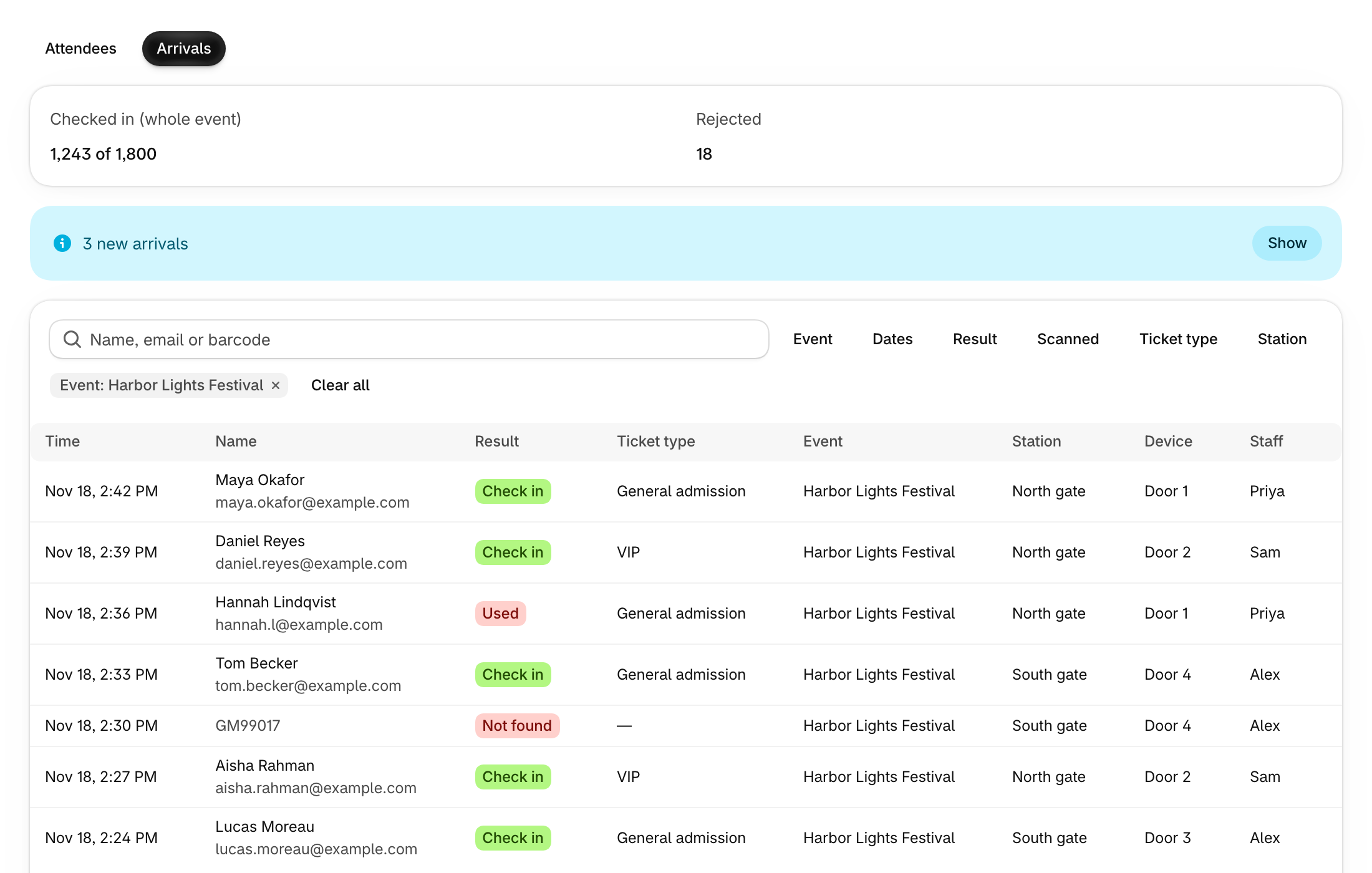
Arrivals lists every scan your staff make with the Guest Manager scanner app or Shopify POS, newest first: guests checked in, and tickets turned away. Use it on event day to watch the doors from the app, see who was refused and why, and check how many guests are in.
Requirements: A device set up for check-in (see Choosing and setting up a scanning app).
Open Arrivals
- In the app, open Attendees.
- Click Arrivals at the top of the page. Click Attendees to go back to the attendee list.
You can also open it from:
- an event’s page: click Arrivals under Reports. The list opens filtered to that event, with a link back to it.
- Check In: click View arrivals. It shows once a device is set up.
Read the list
Each row is one scan:
- Time: when it was scanned.
- Name: the guest, with their email. Click the name to open the attendee. A scan that matched no ticket shows the barcode that was scanned instead.
- Result: what the scanner decided, such as Check in, Used or Not found. Green is a guest let in, red is a scan turned away.
- Ticket type, Event, Station, Device and Staff: where, on what and by whom it was scanned.
Find a scan
- Type a name, email or barcode in the search box.
- Narrow the list with the filters:
- Event, then Dates for an event with more than one date.
- Result: Successful or Rejected.
- Scanned: Today, Last 7 days or Last 30 days.
- Ticket type, once an event is picked.
- Station.
- Click Clear all to remove every filter.
Watch an event live
- Filter to one event, or one date of it.
- The counts at the top show Checked in (whole event) (for example “1,243 of 1,800” tickets) and Rejected. Only Rejected changes with your other filters.
- While the page is open, new scans show as a banner such as “3 new arrivals”. Click Show to add them to the list.
Export arrivals
Click Export. It opens the Arrivals page in the Guest Manager dashboard in a new tab, filtered to the event you picked. Undoing a check-in is also done there. Export needs a plan that includes the Guest Manager dashboard; on other plans the app tells you which plans do and offers View plans.
Related articles
FAQ
Why does it say “No arrivals yet”?
Nothing has been scanned for the filters you picked. Guests appear here as they are checked in with the Guest Manager scanner app or Shopify POS. Click Set up check-in to set up a device.
Why does it say “Arrivals could not be loaded.”?
The list did not load. Click Try again.
