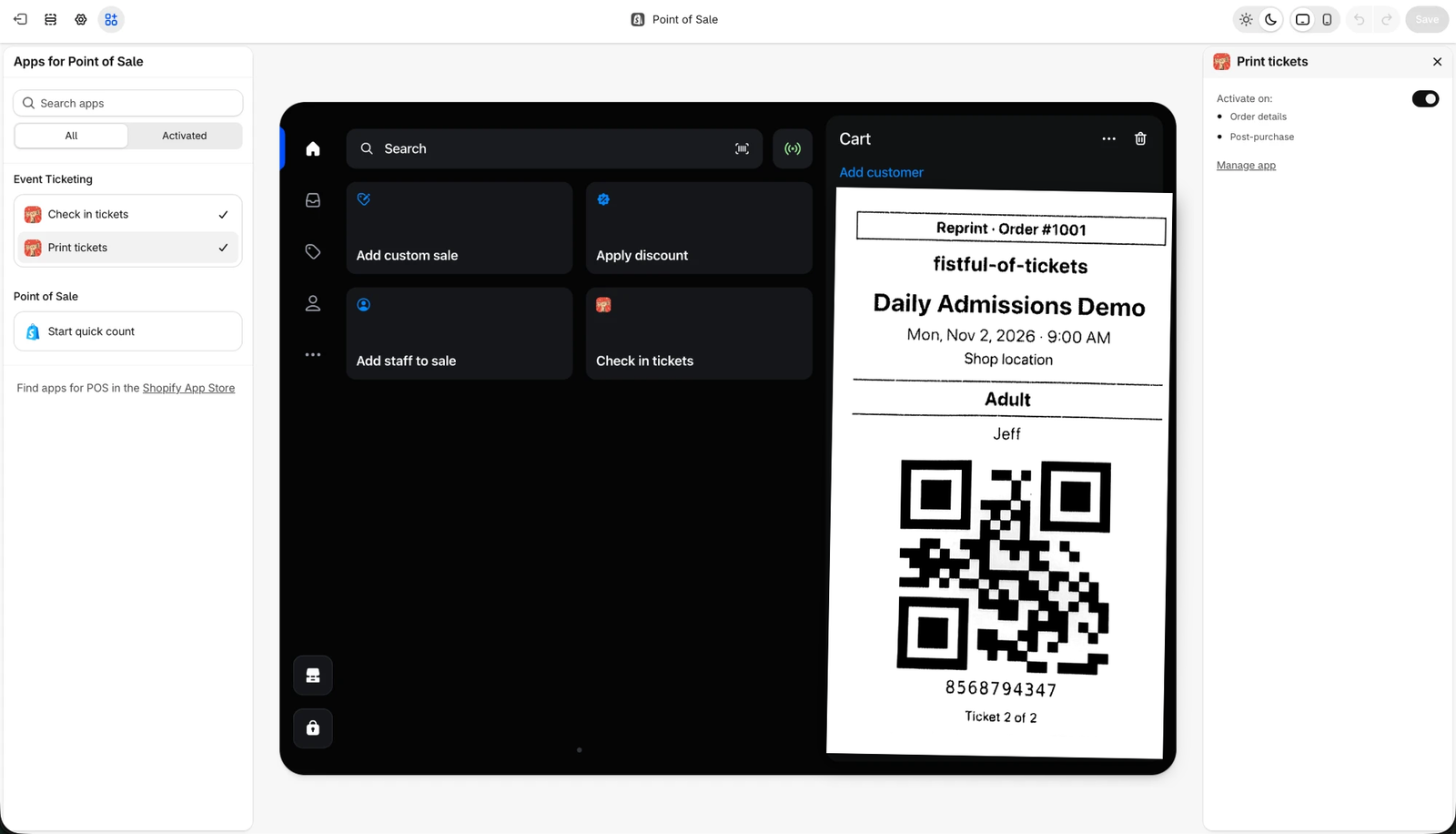
Hand guests a paper ticket at the counter. Each ticket prints on your POS receipt printer with a QR code your door staff can scan.
Where to find it
In the Shopify POS app:
- After a sale: the Tickets block on the sale complete screen shows Print 2 tickets (with the number of tickets in the order) once they are ready.
- Later: open the order in Orders, then tap Print tickets in the actions beside Receipt.
How it works
- Each ticket prints your store name, the event, its date and venue, the product variant and ticket type, the guest’s name, a QR code and a code to type in if the QR code won’t scan.
- Tickets print one after another, with a tear line between them.
- A print from the order is marked Reprint with the order number, so you can tell it apart from the original.
- Tickets print only for POS sales that issue tickets: turn on Point of sale order processing in Settings. An event can override it in its own settings, turning processing on or off for that event alone.
- Sales without tickets don’t show the button.