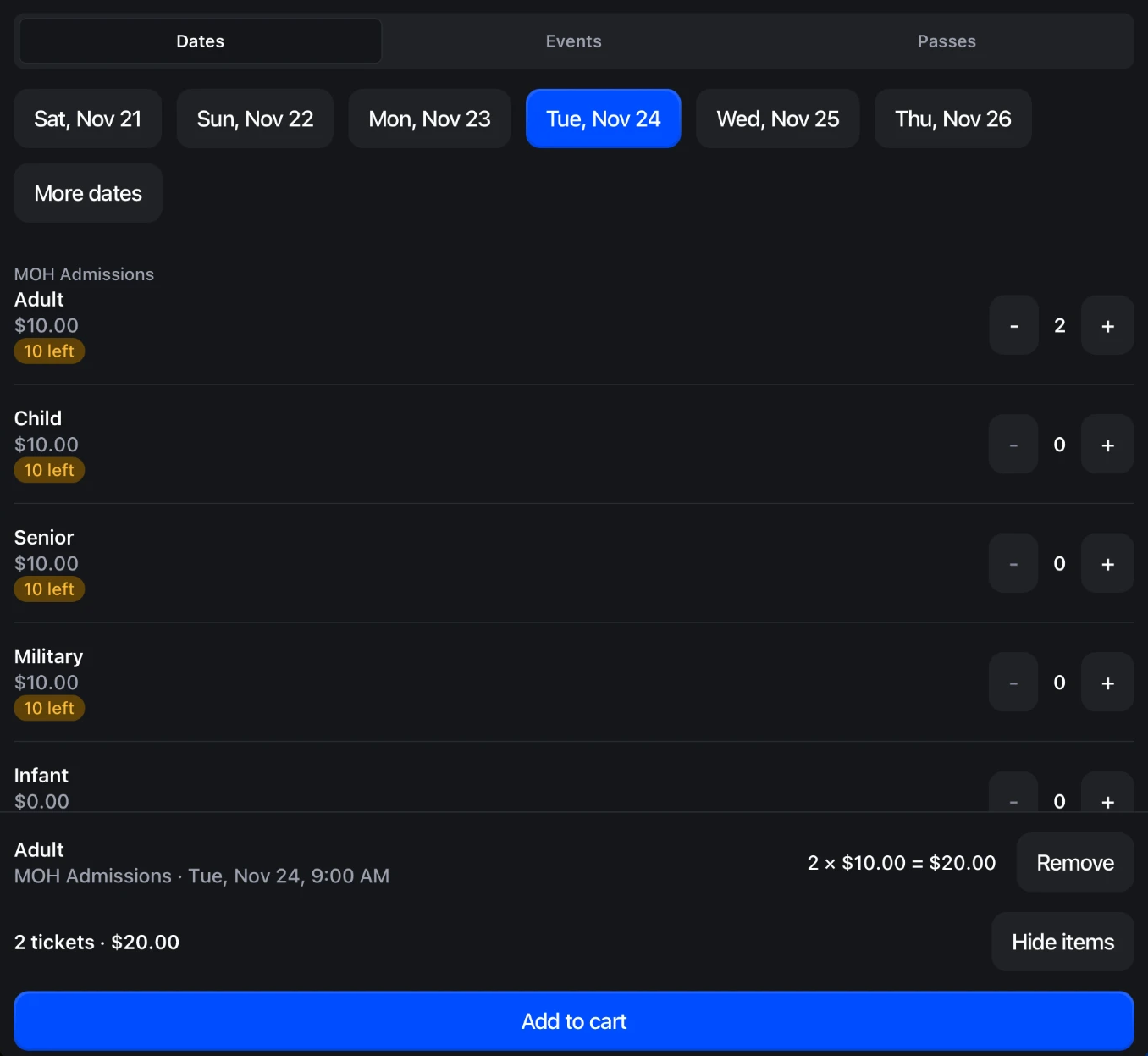
Selling a timed or dated ticket at the counter no longer means hunting for the right product and variant. The Sell tickets tile shows your upcoming dates and times, how many tickets are left, and adds the whole basket to the POS cart at once.
Where to find it
- On the POS home screen: add the Sell tickets tile from Event Ticketing, then tap it.
- On a ticket product: open the product in POS and tap Choose tickets to sell that event’s dates and times.
How it works
- The Dates tab opens on today, with More dates for any other day. When you sell more than one event, the Events tab lists them with their next date. Passes for your recurring events are on the Passes tab.
- Each time shows how many tickets are left, or Sold out. Tap + and - to build the basket.
- The basket bar shows the ticket count and total (marked before fees when booking fees are on). Tap View items to check or remove lines, then Add to cart and check out as usual.
- Notes such as Online sales closed are there to inform your staff, not to stop a sale. Going over what is left asks Sell anyway first.
- An unfinished basket stays on the device for 15 minutes, and the tile shows its ticket count.
The tile needs Shopify POS 11.0 or newer, and only lists tickets published to the Point of Sale channel.