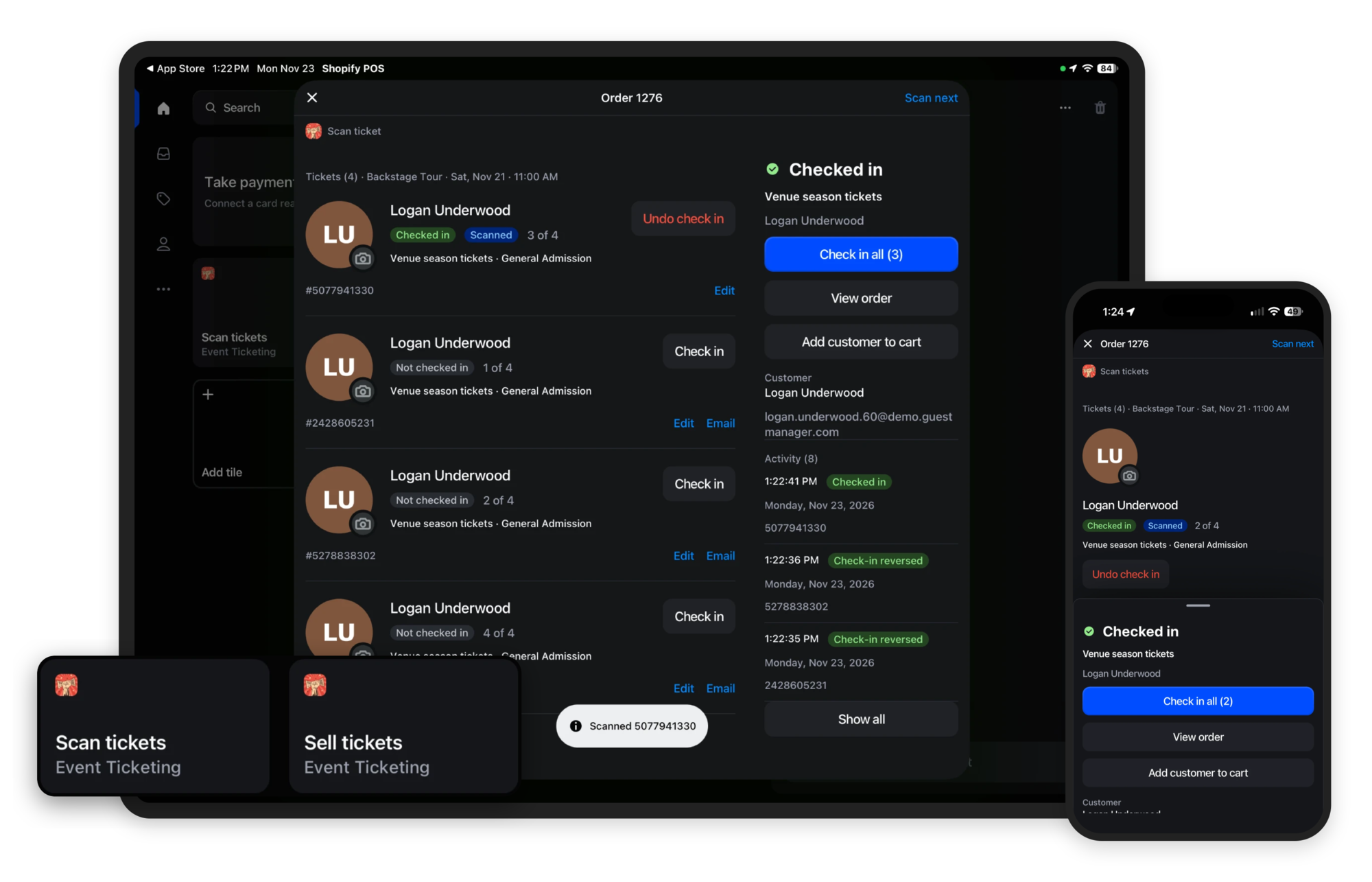
Scanning tickets in Shopify POS now happens on one screen: scan, see the result, and act on the ticket or its order without leaving the scanner.
Where to find it
Tap the Scan tickets tile on your Shopify POS home screen.
How it works
- Each scan shows Checked in, or names why it was refused, such as Too early, Wrong day or Already in, with the ticket type, the guest and any prominent tags.
- When a ticket is refused for the time, such as Too early or Too late, Override and check in checks the guest in anyway.
- The order shows every ticket with Check in or Undo check in, plus Check in all and Scan next.
- Edit on a ticket changes the guest’s name, email and answers, and Edit under Buyer questions changes the order’s answers. A question is editable on POS when its question set allows it under Shopify POS; otherwise it shows read-only.
- Tickets with no Shopify order, such as imported tickets, open as a ticket card too.