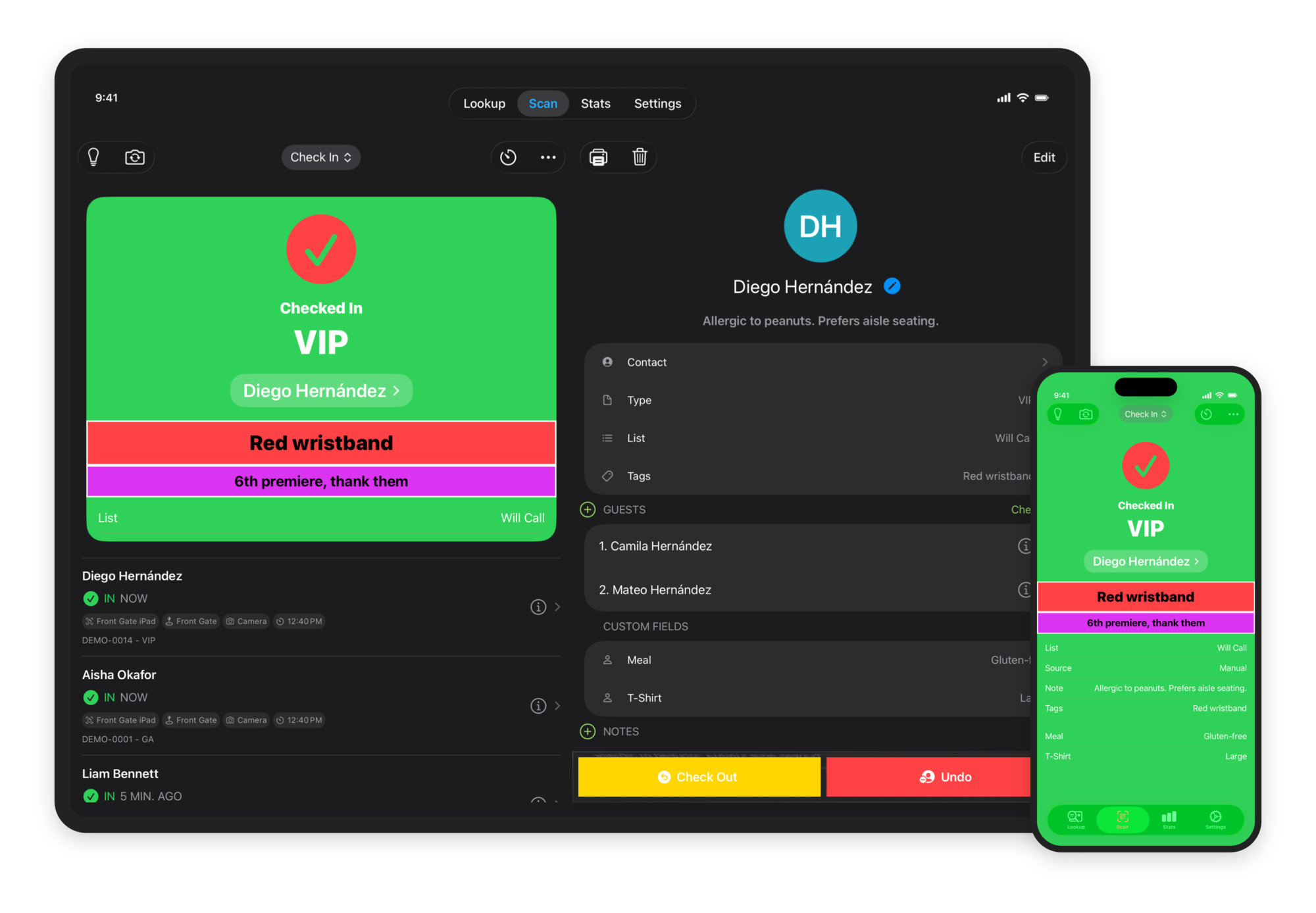
Tags can now do more than sort your list. Make a tag prominent, give it a color, and your door staff see it as a colored band when they scan a ticket, so a VIP, a minor or an unpaid balance is hard to miss. You can tag attendees one at a time right in the attendee list, or hundreds at once.
Where to find it
- Settings, then Tags under Company, to create a tag and choose how it shows on the scanner.
- The Tags column of an event’s attendee list, to tag one attendee or the person behind the ticket.
- Actions, then Tag attendees…, to add, remove or replace a tag on many attendees at once.
How it works
- Set On the scanner to Prominent and pick a Color. Standard tags show as before and Hidden tags stay off the scanner.
- Tick Remove after the person’s next check-in for a one-time tag on the person, such as a gift to hand over at the door. The same tag on a ticket stays.
- In bulk, Replace their other prominent tags with this one swaps one prominent tag for another and keeps standard tags.
- Changes reach online scanners right away.