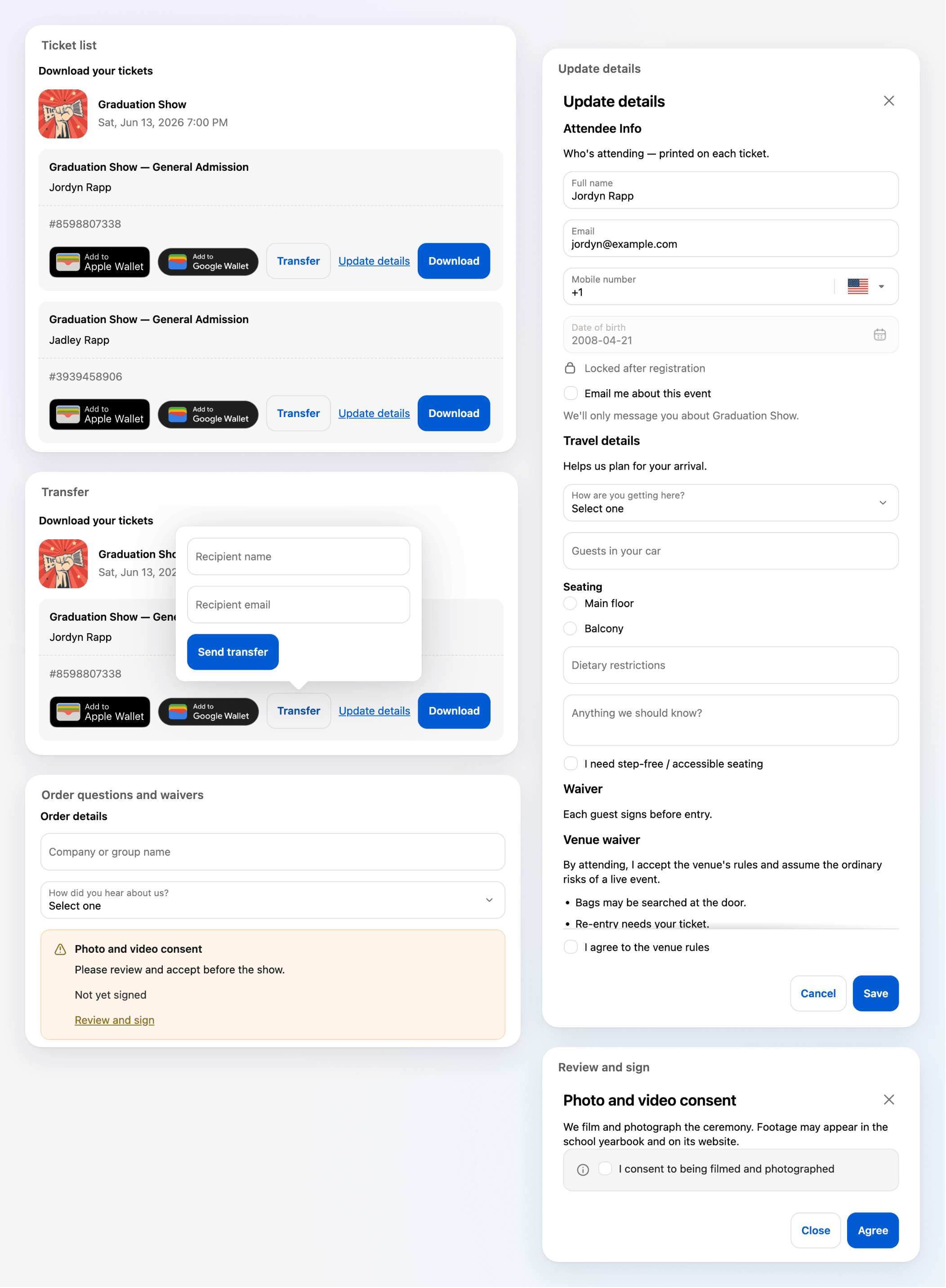
The Order tickets block is where guests get their tickets after checkout. It now shows each ticket as its own tile, with everything a guest can do with that ticket in one row.
Where to find it
On your store’s thank you and order status pages. There is nothing to turn on: every store with the block already has the new design. In the checkout editor, the block’s preview shows a sample order with questions, a locked answer and waivers, so you can see how it looks to guests.
What’s new
- The event at the top: the event’s name, date and venue show once above its tickets, with its image if it has one. An order with tickets for more than one event gets a heading for each.
- One row of actions per ticket: Add to Apple Wallet, Add to Google Wallet, Transfer, Update details and Download sit together under the ticket number.
- Transfer on the page: Transfer opens a short form for the recipient’s name and email.
- Update details: opens the guest’s answers in a form grouped by section. Answers you lock show a lock and the reason, such as Locked after registration, and waivers show their terms with the box to accept them.
- Order questions after the tickets: questions about the whole order, and order waivers, appear below the tickets. A waiver shows as a banner with Review and sign.
- Clearer download messages: when a guest still has questions to answer, one message above the tickets says so, instead of a note on each ticket. Download all shows when an order has two or more tickets.