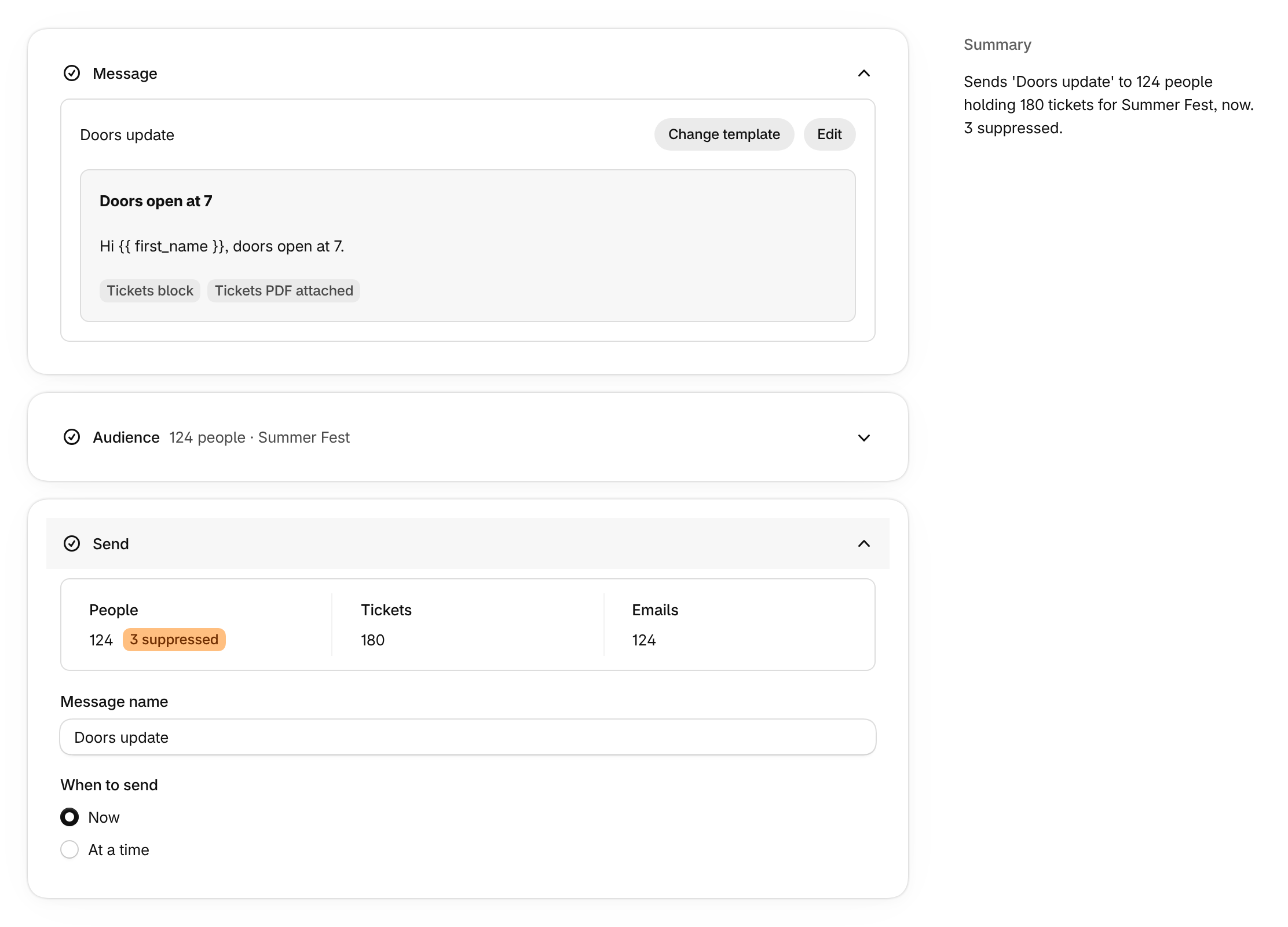
Email the people coming to your events whenever you need to: a change of venue, a reminder of what to bring, or tickets for anyone who hasn’t downloaded them yet. Pre-event and post-event emails can also go out on their own for every event.
Where to find it
In the Shopify app, open Messages from the app menu, then choose New message. An event’s page also lists its recent messages in a Messages section.
How it works
- Message: pick a template and edit its subject and body, with merge fields for each guest’s name and event.
- Audience: pick an event and its sessions, then narrow it by whether people have checked in, downloaded their tickets or already received this message.
- Send: send it Now or schedule it At a time. The Send step shows how many people and emails it covers before you send.
- Automatic emails: turn on the Pre-event email and Post-event email on the Messages page and choose when they go out. Each event can change or turn off its own.
After a message goes out, its page shows its recipients and open rate, and Send to N more reaches anyone who got a ticket since.
Emails to guests with free tickets use credits, one per email, and the Send step shows the cost before you send. Messages is on the Advanced, Professional and Plus+ plans.